01Visible silver top surface
Metal Top Cover
A sturdy metal lid (integrated heat spreader) that protects the tiny silicon processor underneath from pressure and spreads heat evenly into the cooler that sits on top of it.
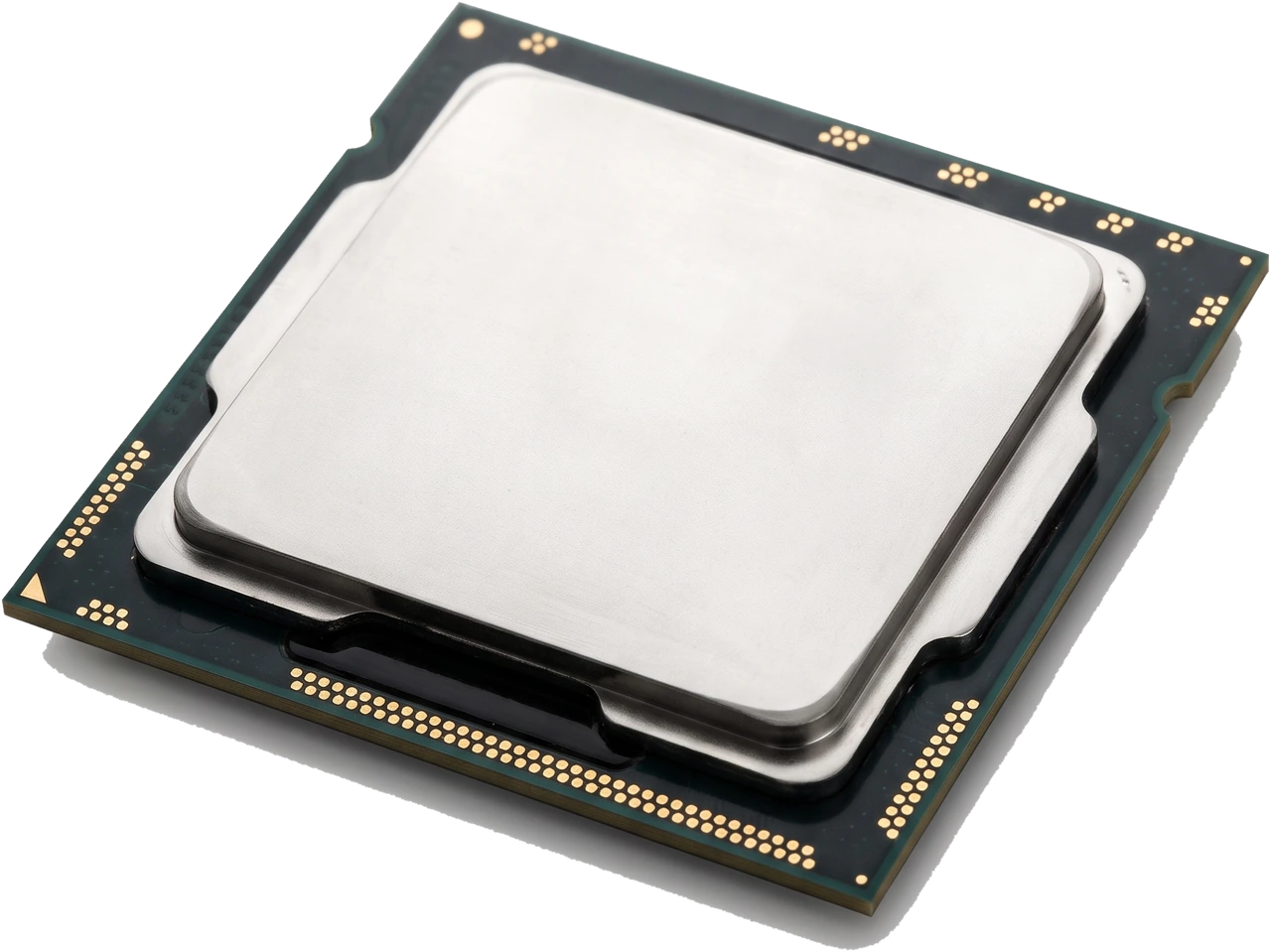
The Central Processing Unit (CPU), commonly called the processor, acts like the brain of the computer. It follows software instructions, performs calculations and directs tasks across every other part.
Every action on your computer passes through the CPU. When you open a web browser, type a document or launch a game, the computer copies that program from permanent storage into fast Random Access Memory (RAM), and the CPU reads and runs those instructions step by step.
Everyday browsing, streaming and office work need only a modest processor. Heavy tasks such as video editing, photo batch processing or modern gaming benefit from stronger processors with more independent processing units (called cores) working at once. The CPU installs into a socket on the motherboard and sits directly underneath a cooling unit so it stays at a safe temperature.
Many people refer to the entire desktop tower as "the CPU". In reality, the CPU is one small square chip sitting inside the case on the motherboard, hidden beneath its cooler.
Because a desktop processor is sealed to protect delicate internal electronics, most parts you handle sit on the outside. Look at the main photo above and images A and B below to recognise the five key features:
A sturdy metal lid (integrated heat spreader) that protects the tiny silicon processor underneath from pressure and spreads heat evenly into the cooler that sits on top of it.
The fragile silicon chip inside that holds the processor cores. On an assembled desktop processor you never touch this chip directly because the metal lid shields it.
The rigid small circuit board that holds the hidden chip and connects it down to the gold contacts on the underside.
Hundreds of tiny pins or flat gold pads that carry power and data between the processor and the motherboard. Hold the processor strictly by its edges and never touch these contacts.
Small cut-outs along the edges and a tiny golden triangle on one corner show the single right way the processor fits into the motherboard socket.
Processors are grouped both by how their electrical contacts meet the motherboard socket (Pin Grid Array and Land Grid Array below) and by manufacturer families from Intel and Advanced Micro Devices (AMD).
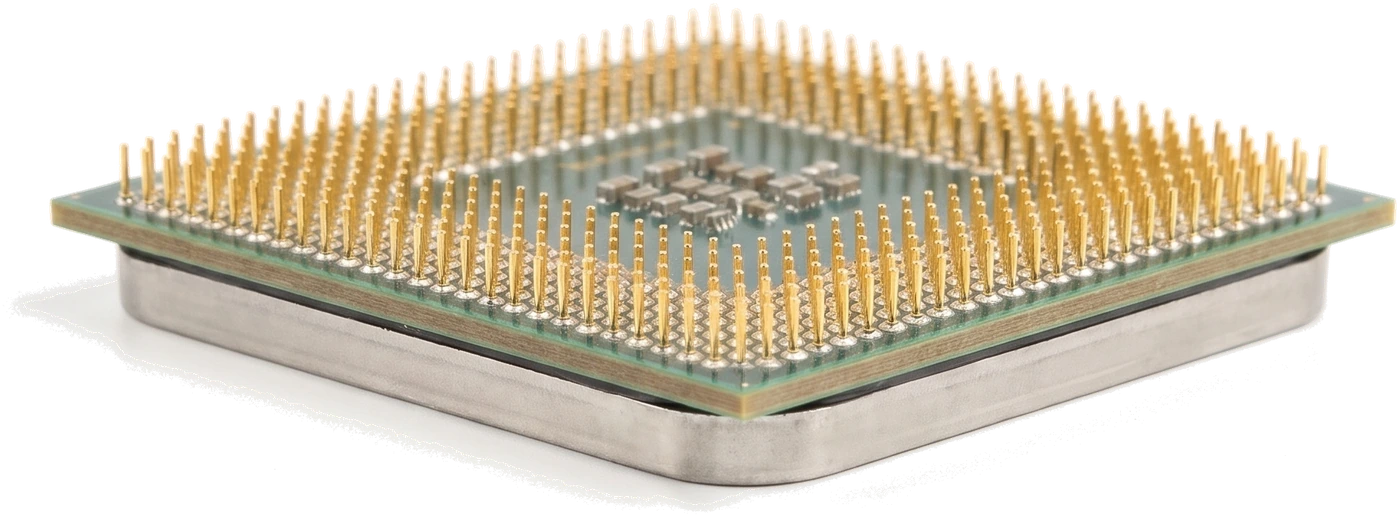
A Pin Grid Array processor has rows of thin metal pins sticking out of its underside that drop into tiny holes in the motherboard socket. Because exposed pins bend easily if dropped or bumped, handle PGA processors very carefully. Used mainly on older platforms such as older AMD Ryzen desktop systems (Socket AM4).
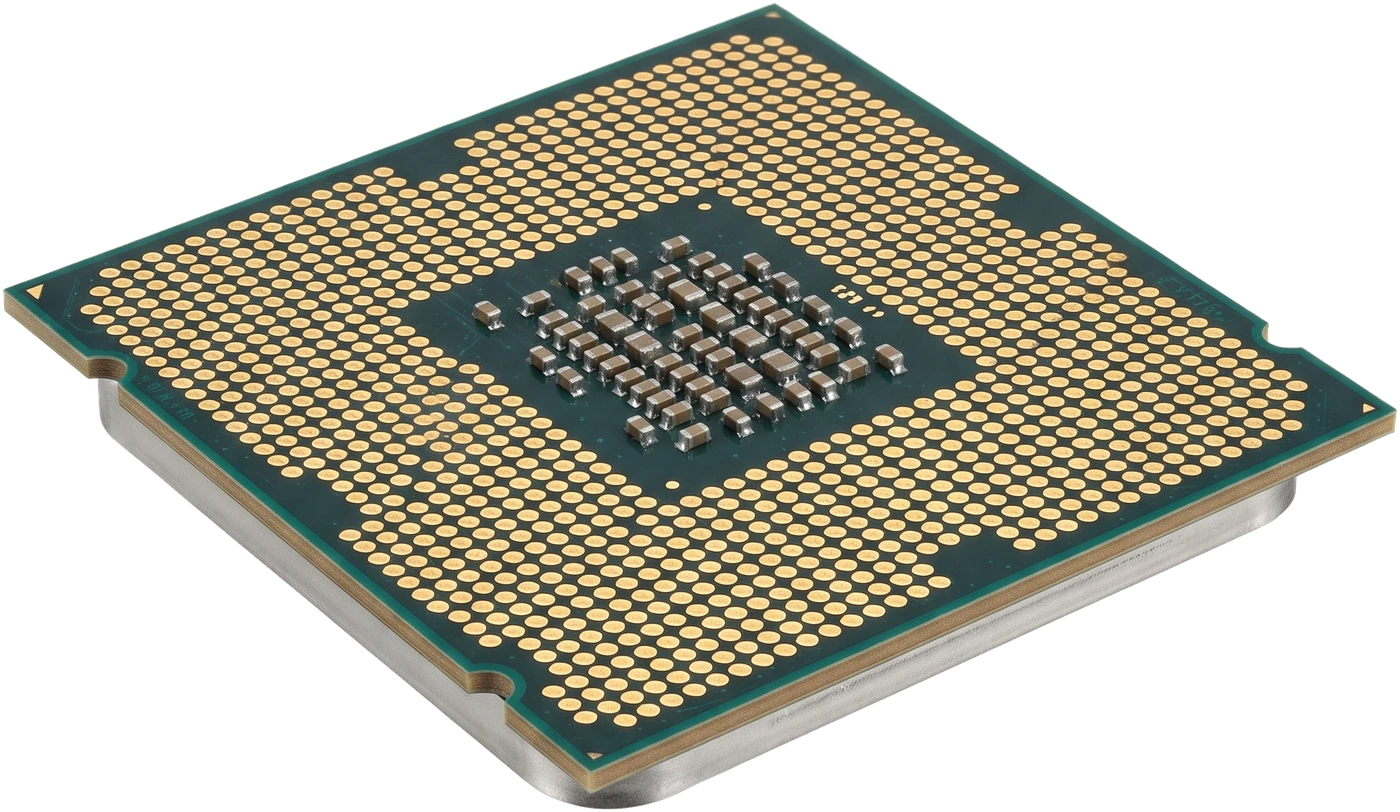
A Land Grid Array processor has flat gold contact pads on its underside, while the delicate spring pins sit inside the motherboard socket instead. Modern Intel desktop platforms and current AMD platforms (Socket AM5) use LGA sockets. Keep the motherboard socket covered with its plastic protector until the exact moment you set the processor in place.
Almost all desktop computers run processors from Intel or AMD. Windows, Linux and ordinary software run on both, so choose based on value, compatibility and your needs rather than brand habit.
Mainstream desktop ranges grouped into entry (3 / Ultra 5), mid-range (5 / Ultra 5 to Ultra 7) and high-end (7 to 9 / Ultra 9) tiers.
Desktop range grouped cleanly by performance tier: Ryzen 3 (basic), Ryzen 5 (mainstream), Ryzen 7 (high-end) and Ryzen 9 (heavy creative/multitasking work).
You do not pick PGA or LGA separately; the contact style comes built into the processor and motherboard socket you choose.
| Feature | Pin Grid Array (PGA) | Land Grid Array (LGA) |
|---|---|---|
| Where the pins sit | On the bottom of the processor itself | Inside the motherboard socket |
| Biggest handling risk | Bending pins on the processor if dropped or twisted | Damaging spring pins inside the motherboard socket |
| Where you see it today | Older systems such as AMD Socket AM4 | Modern Intel sockets and AMD Socket AM5 |
Do not get distracted by long model numbers or marketing slogans. Focus on these five practical points when choosing a processor.
More cores let the computer juggle heavy tasks (video editing, 3D work) at once, while speed in gigahertz (GHz) helps single tasks respond quickly. Neither number alone tells the whole story because newer designs get more work done per tick. Look for a mid-range Ryzen 5 or Core 5 / Core Ultra 5 for everyday work and gaming; avoid paying extra for 16+ core flagship chips just for browsing or schoolwork.
The socket name (such as AMD AM5 or Intel LGA 1700 / LGA 1851) decides which motherboards fit and whether you must buy Double Data Rate 4 (DDR4) or Double Data Rate 5 (DDR5) memory. Check the processor specification page first so you do not buy a motherboard or memory stick that cannot connect.
Integrated graphics let the computer display a picture on your monitor without a separate graphics card. Always verify this if you are building an office, study or budget desktop without a dedicated graphics card. Avoid Intel "-F" models unless you are definitely buying a separate graphics card, or your screen will remain blank.
Processors list a base power rating in watts (W) that reflects heat output under normal work, though heavy tasks use more. Entry models often include a simple cooler in the box; mid-range and high-end models usually do not. Always check the box contents so you are not left without a cooler or with an undersized Power Supply Unit (PSU).
Some processor platforms accept newer chip generations for years, while others change sockets every couple of years. Buying into a newer socket platform (where budget permits) makes a future upgrade easier without changing your motherboard and memory too.
Spending extra on a top-tier processor for web browsing, office documents or light games rarely feels faster. Putting that extra money toward a Solid-State Drive (SSD), adequate RAM or a better graphics card makes a much bigger everyday difference.
A processor works only when the motherboard, memory, cooler and power supply around it support its exact model.
Same socket name, AND confirm your exact processor model appears on the motherboard maker's CPU Support List (some older boards need a Basic Input/Output System (BIOS) update before a newer CPU will start).
Match the memory generation required by the processor and motherboard (for example DDR4 vs DDR5).
Confirm a cooler is either included in the CPU box or bought separately with mounting brackets for your socket and enough cooling power.
Make sure the PSU provides enough total wattage and the motherboard processor power plug(s).
Processors are sturdy sealed chips with no moving parts and often last well over a decade when kept cool and undisturbed.
Hold any processor strictly by its outer edges. Never push down with force: if the corner triangle and side notches are lined up properly, it drops flush into place gently.
An older stock board may refuse to turn on with a newer processor until updated using an older chip or update button.
The video ports on the motherboard produce no display signal at all.
Running a desktop chip even briefly without a heatsink causes instant overheating and automatic shutdown.
Paying more for an older high-core chip can deliver worse everyday and gaming performance than a modern mid-range model.