01Dark rectangles along the green board
Memory Chips
Silicon chips that hold temporary data while the computer is switched on.
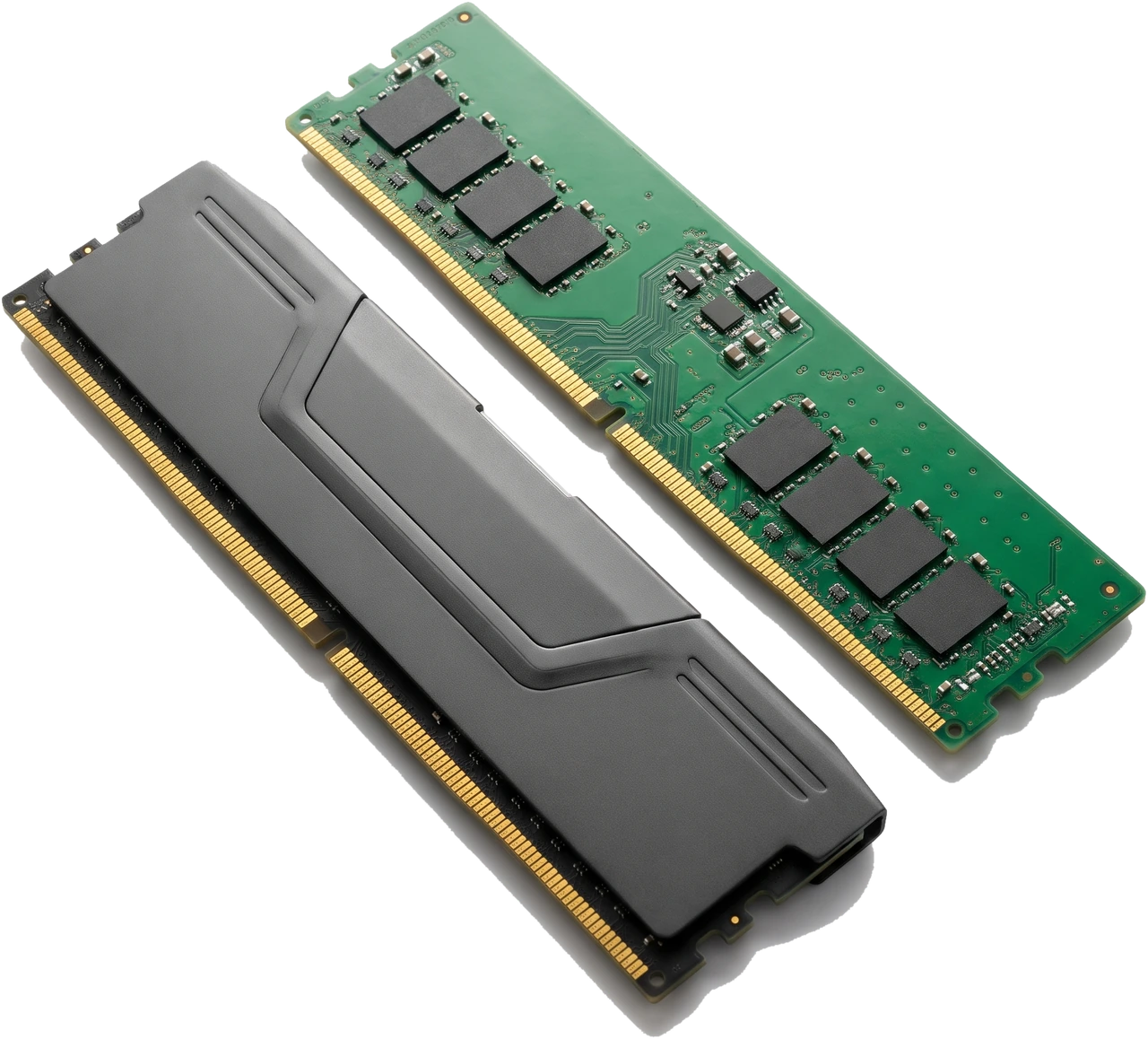
Random Access Memory (RAM) is the computer's fast temporary workspace. It holds your open programs and active files so the processor can reach them instantly without waiting on slower storage drives.
When you switch on the computer or open an application, the system copies needed instructions and data from permanent storage into RAM. Because RAM works many times faster than even a quick Solid-State Drive (SSD), having enough RAM keeps multitasking, web tabs and games smooth.
RAM clears completely the instant power switches off or the Personal Computer (PC) restarts. Always save open documents and projects so they are written onto permanent storage before shutting down. Every desktop RAM stick uses Synchronous Dynamic Random Access Memory (SDRAM) in either Double Data Rate 4 (DDR4) or Double Data Rate 5 (DDR5) generations.
Storage is your filing cabinet where files stay safely when you leave the room. RAM is the desk top where you lay out what you are working on right now. A bigger desk lets you keep more programs open smoothly at once; when the desk fills up, the computer starts shuffling things back to slow storage and everything stalls.
The bare green stick above shows what sits beneath the decorative covers on modern memory modules:
Silicon chips that hold temporary data while the computer is switched on.
Links the chips to the gold contacts. Many retail kits add an aluminium outer cover (heat spreader) for looks and light cooling. Tall covers can bump into wide Central Processing Unit (CPU) air coolers.
Plug directly into the motherboard memory slots. Hold sticks strictly by their top corners or side edges so finger oils do not smudge the gold pads.
Sits in a slightly different spot on each Double Data Rate (DDR) generation so you cannot plug a stick in backwards or push DDR4 memory into a DDR5 motherboard.
Memory has two separate classifications: generation (how fast and modern it is, such as DDR4 vs DDR5) and physical size (full-size desktop DIMM vs compact laptop Small Outline DIMM (SO-DIMM)). Never mix them up when ordering.
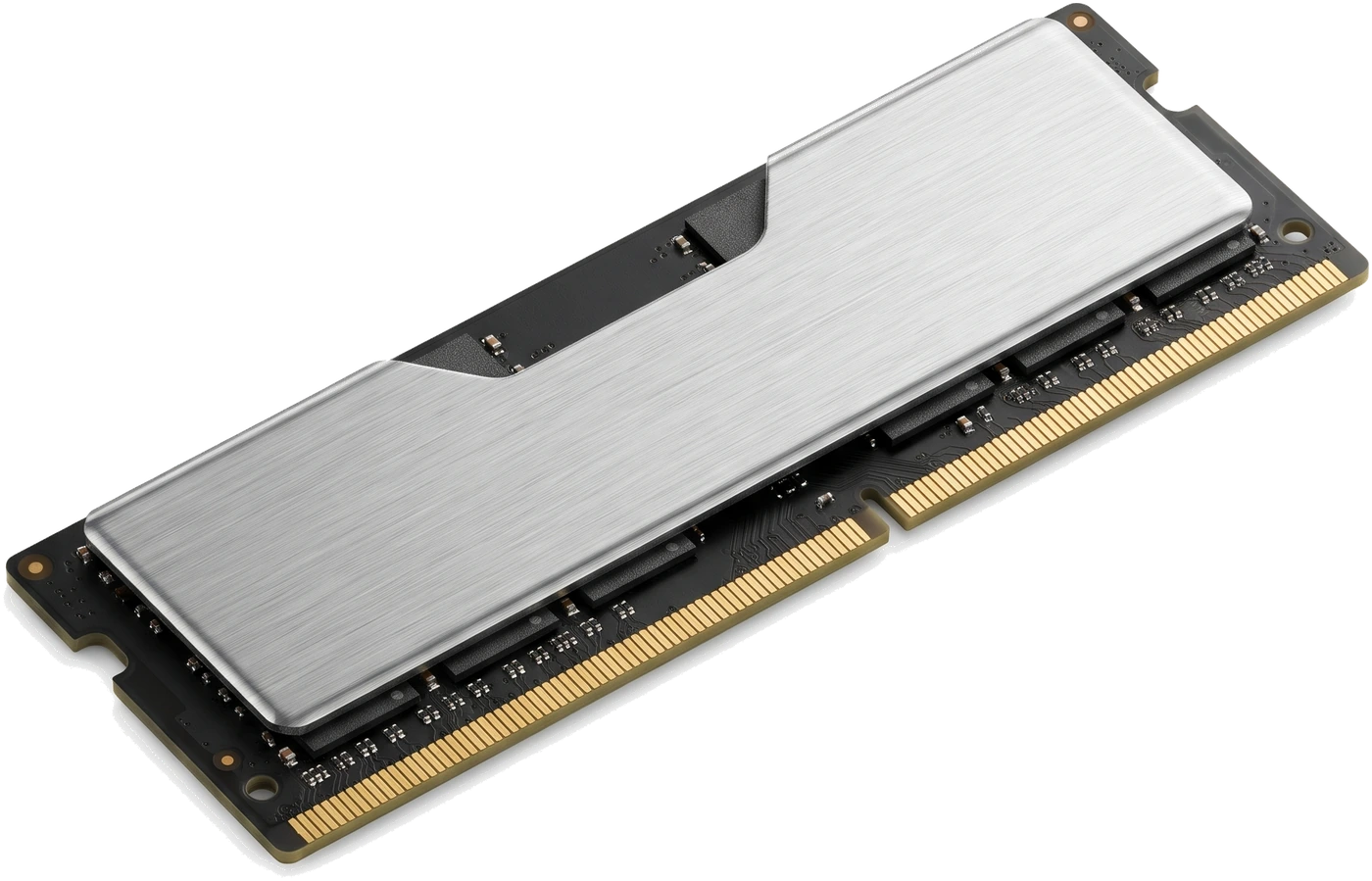
The widely used previous desktop memory generation (DDR4 SDRAM), common on Advanced Micro Devices (AMD) AM4 systems and DDR4 versions of Intel Land Grid Array (LGA) 1700. Affordable and reliable at typical speeds around 3200 to 3600 megatransfers per second (MT/s), though physically keyed differently from DDR5 and not compatible with DDR5 boards.
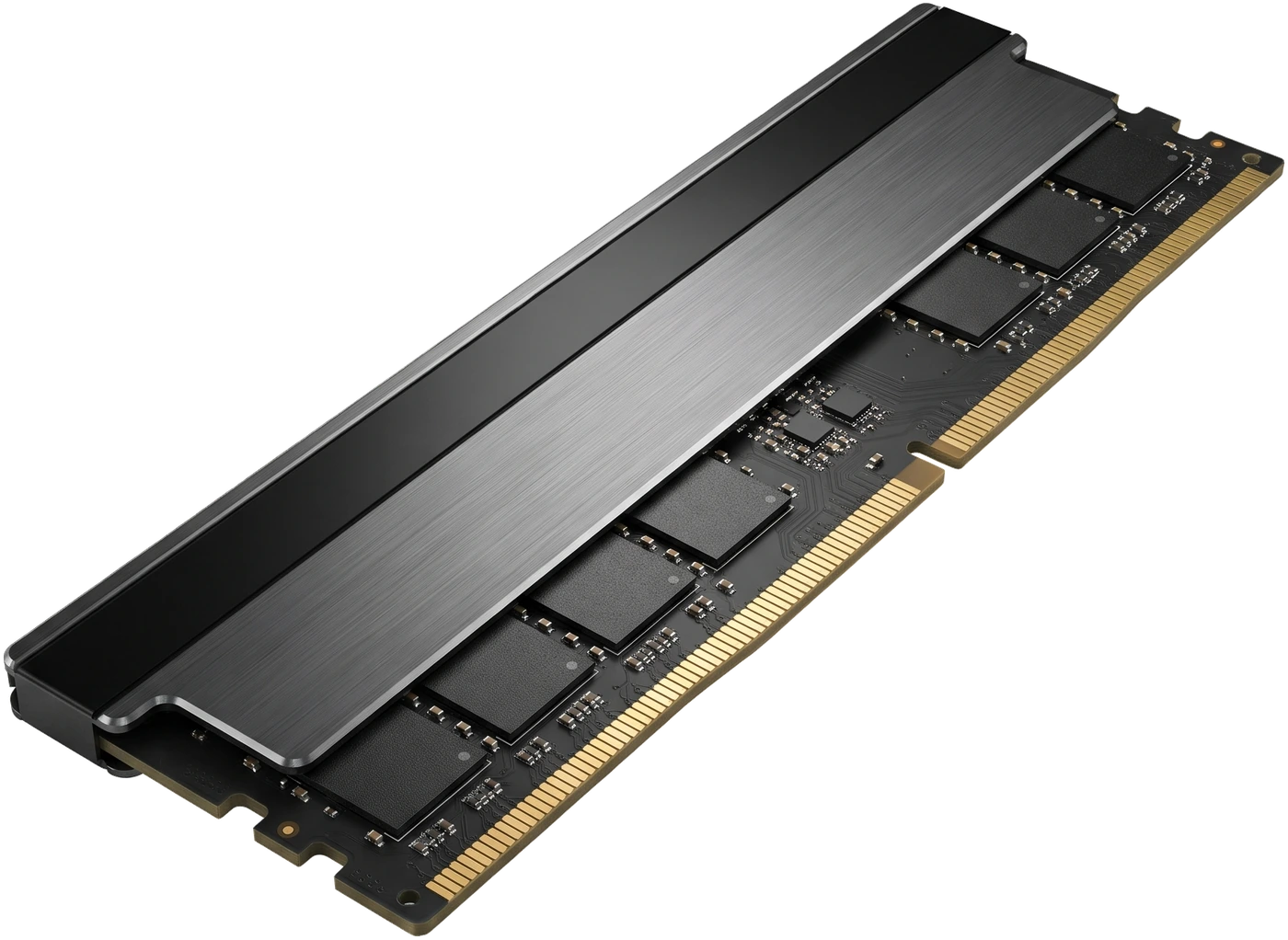
Current-generation desktop memory (DDR5 SDRAM) with higher bandwidth, typically starting at 4800 MT/s and commonly sold at 5600 to 6400 MT/s. Required by modern AMD AM5 and Intel LGA 1851 motherboards. Will not fit older DDR4 slots.
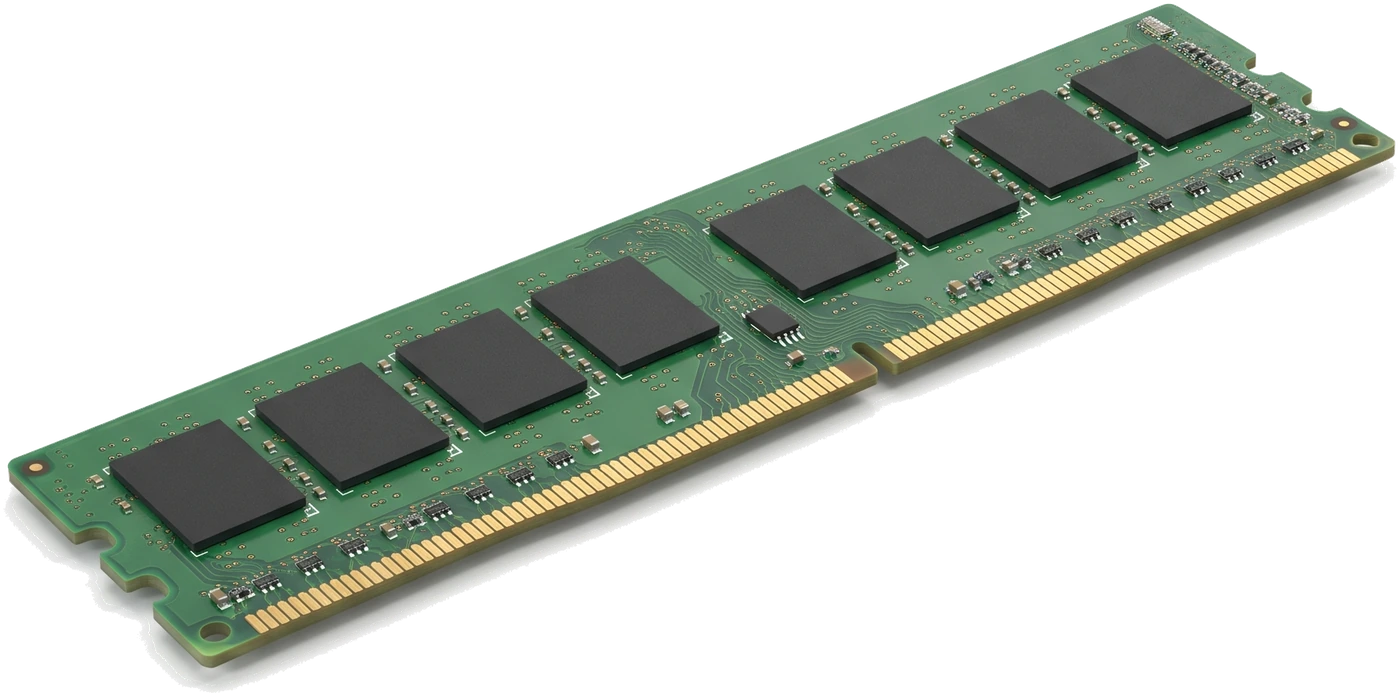
The standard full-size memory stick (about 133 millimetres (mm) long) used in regular desktop computer motherboards.
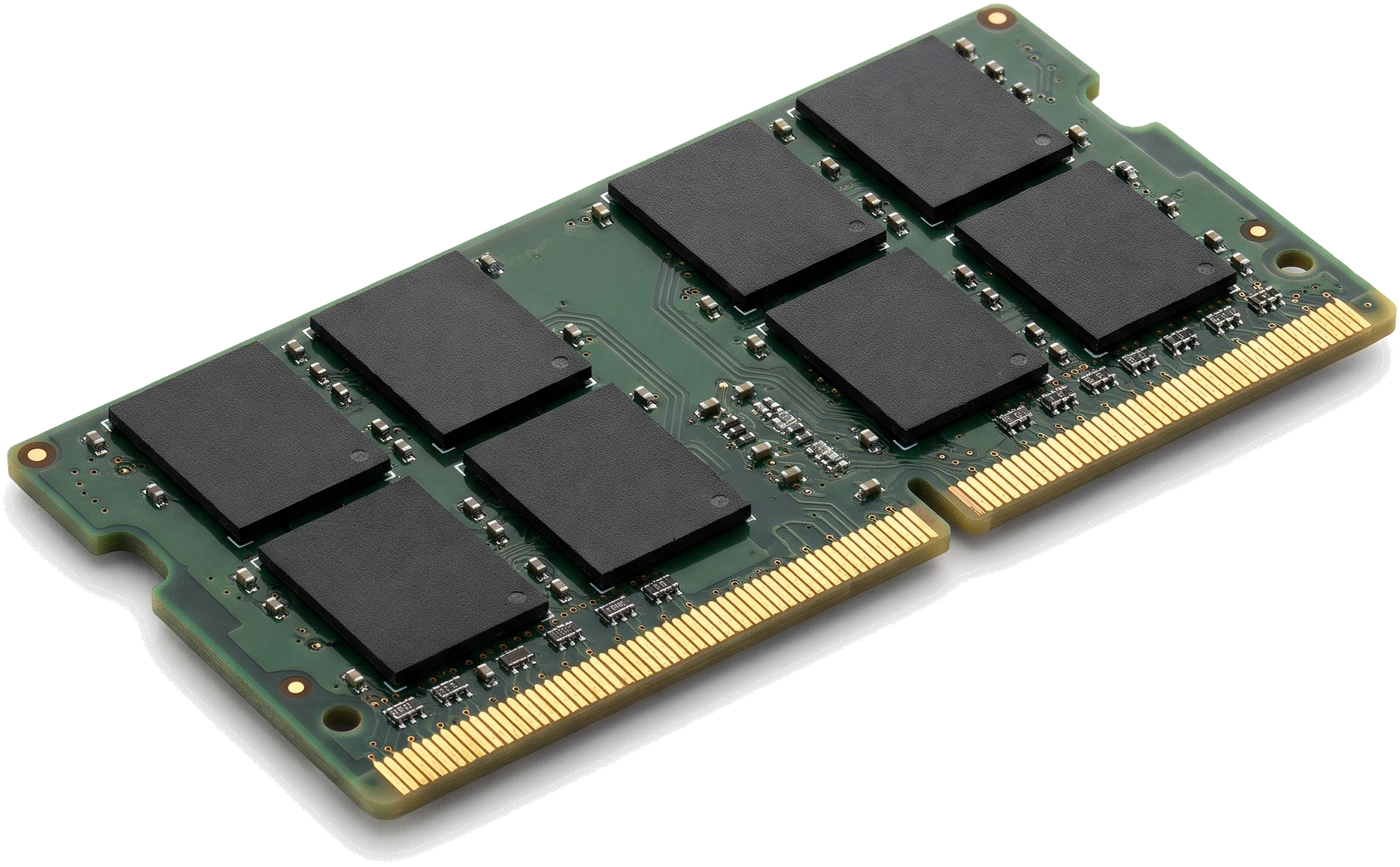
A short half-length module (about 68 mm long) built for laptops, mini PCs and tiny specialised boards. Does not fit into normal desktop motherboard slots.
You do not pick freely between DDR4 and DDR5: your motherboard and CPU lock you into one generation.
| Feature | DDR4 | DDR5 |
|---|---|---|
| Typical desktop speed | 3200 to 3600 MT/s | 4800 to 6400+ MT/s |
| Common platforms | AMD AM4; DDR4 Intel LGA 1700 boards | AMD AM5; Intel LGA 1851; DDR5 LGA 1700 boards |
| Interchangeable? | No (unique slot notch) | No (unique slot notch) |
| Format | Physical Size | Used In | Fits Desktop Tower? |
|---|---|---|---|
| DIMM | Full length (~133 mm) | Standard desktop PCs | Yes |
| SO-DIMM | Half length (~68 mm) | Laptops and mini PCs | No (too short for standard desktop slots) |
Capacity and compatibility matter far more than chasing extreme speed numbers. Focus on these six checks:
Match your motherboard's exact generation (DDR4 or DDR5) and choose full-size DIMM for a desktop tower. Why it matters: wrong-generation or laptop SO-DIMM sticks physically will not fit. Avoid assuming older RAM from an old PC carries over.
How much temporary workspace you get. Why it matters: too little RAM causes constant stuttering and slow app switching; far more than you use simply sits idle. Look for 16 GB minimum on a modern PC and 32 GB for comfortable future-proofing and gaming; avoid 8 GB on new builds unless strictly tight on budget.
Desktop boards run memory twice as smoothly when two matching sticks share the workload instead of one stick working alone. Why it matters: buying one 16 GB stick instead of a 2 x 8 GB kit leaves noticeable speed on the table (especially if using CPU integrated graphics). Avoid mixing random single sticks bought at different times.
Data rate is listed in megatransfers per second (MT/s), though many shops still label it megahertz (MHz). Look for sweet-spot speeds supported cleanly by your CPU (for example 3200 to 3600 MT/s on DDR4, 5600 to 6000 MT/s on DDR5). Important catch: new RAM boots at a slower safe baseline speed until you switch on Intel Extreme Memory Profile (XMP) or AMD Extended Profiles for Overclocking (EXPO) inside the Basic Input/Output System (BIOS).
Putting four sticks into four slots gives more capacity, but on modern high-speed DDR5 platforms four sticks often have to run slower to stay stable. For best results on a new build, buy the full capacity you want as one matched 2-stick kit.
Tall decorative lighting or spiked heat spreaders look striking but can hit the front fan of big tower CPU air coolers. Low-profile sticks (around 32 to 35 mm tall) fit cleanly under almost any air cooler.
| Capacity | Recommended Kit | Best Suited For |
|---|---|---|
| 8 GB | 2 x 4 GB or 1 x 8 GB (budget upgrade only) | Very light web browsing only; quickly feels cramped on Windows 11 |
| 16 GB | 2 x 8 GB matched kit | Practical starting point for everyday study, office work and light-to-mainstream gaming |
| 32 GB | 2 x 16 GB matched kit | Recommended sweet spot for modern gaming with background apps, coding and photo/video work |
| 64 GB+ | 2 x 32 GB matched kit | Heavy 4K video editing, large three-dimensional (3D) projects or running multiple virtual machines |
Going from 16 GB to 32 GB of mainstream memory fixes real slowdowns when your desk fills up, whereas paying huge premiums for ultra-fast exotic kits rarely changes real-world speed unless you rely solely on built-in CPU graphics.
Memory must match the motherboard slots, the processor speed support and nearby cooler space.
Exact DDR generation (DDR4 or DDR5), full-size DIMM format, total GB within board limits, and checked against the board's Memory Support List.
Processor must support that DDR generation and comfortably handle your chosen kit speed.
Compare stick height in millimetres if installing a wide tower air cooler whose front fan overhangs the RAM slots.
RAM has no moving parts and usually works reliably for the life of the computer once clicked properly into place.
Different sizes and notch positions prevent installation entirely.
Runs in single-channel mode, cutting memory bandwidth roughly in half.
All memory slows down to the slowest stick or refuses to start reliably.
High-speed paid-for memory quietly runs at slow basic default speed forever.