01Upper-centre metal clamp
CPU Socket
Holds the processor securely and links its pins or pads to the board. Fits only one specific processor socket family.
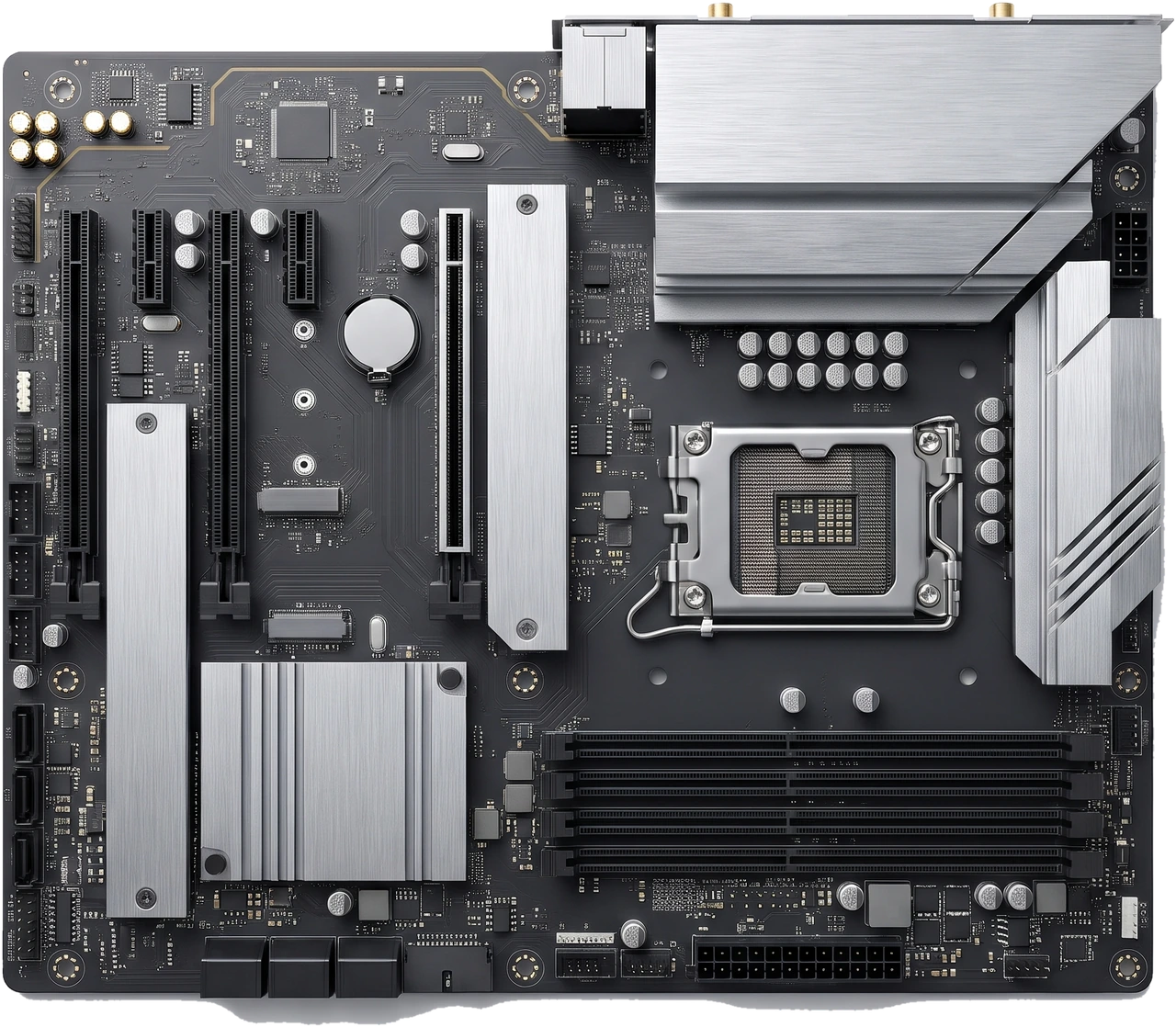
The motherboard is the large main circuit board inside the case that physically holds, powers and connects every component so they can work together.
Copper wiring built inside the board delivers regulated power from the Power Supply Unit (PSU) and carries signals between the CPU, Random Access Memory (RAM), storage drives, graphics card, Universal Serial Bus (USB) devices and network connections. It also holds the built-in startup firmware that checks hardware and starts Windows or Linux when you press the power button.
Because the motherboard decides your processor socket, memory generation (Double Data Rate 4 (DDR4) or Double Data Rate 5 (DDR5)), storage connectors and overall physical shape, it sets the limits for the entire Personal Computer (PC). Standard sizes include ATX, smaller Micro Advanced Technology eXtended (Micro-ATX or mATX), and compact Mini Information Technology eXtended (Mini-ITX).
Inside the motherboard is a small startup program chip. Older computers called this Basic Input/Output System (BIOS), while modern boards run the newer Unified Extensible Firmware Interface (UEFI) with mouse menus and support for large drives. Most people still call the startup settings screen "the BIOS".
From the top-down view above, you can locate the sockets and slots you actually use during assembly, maintenance and upgrades:
Holds the processor securely and links its pins or pads to the board. Fits only one specific processor socket family.
Hold RAM sticks with hinged locking clips at the ends and an offset plastic ridge so only the right generation fits.
The long top slot (x16 size) holds a dedicated graphics card. Shorter slots hold extras such as wireless cards or sound cards.
Hold flat gum-stick Solid-State Drives (SSDs) directly on the board using a tiny screw or latch, needing no cables.
Plug thin data cables here for 2.5-inch Solid-State Drives and 3.5-inch Hard Disk Drives (HDDs).
Receive main power (24-pin) and processor power (4+4-pin or 8-pin) from the PSU. Silver heatsinks beside the CPU socket keep power circuits cool.
The firmware chip holds BIOS/UEFI startup settings, while the coin battery (Complementary Metal-Oxide-Semiconductor (CMOS) battery) keeps the clock and saved settings working when the PC is unplugged.
Back ports connect your monitor (only active if your CPU has built-in graphics), USB devices, network cable, speakers and Wireless Networking (Wi-Fi) antennas. Small edge pins connect your case power button, fans and front USB ports.
Desktop motherboards are grouped into three common standard sizes (form factors), plus rare extra-large boards for specialist builds. Size decides which cases fit and how many slots and connectors the board has room for.
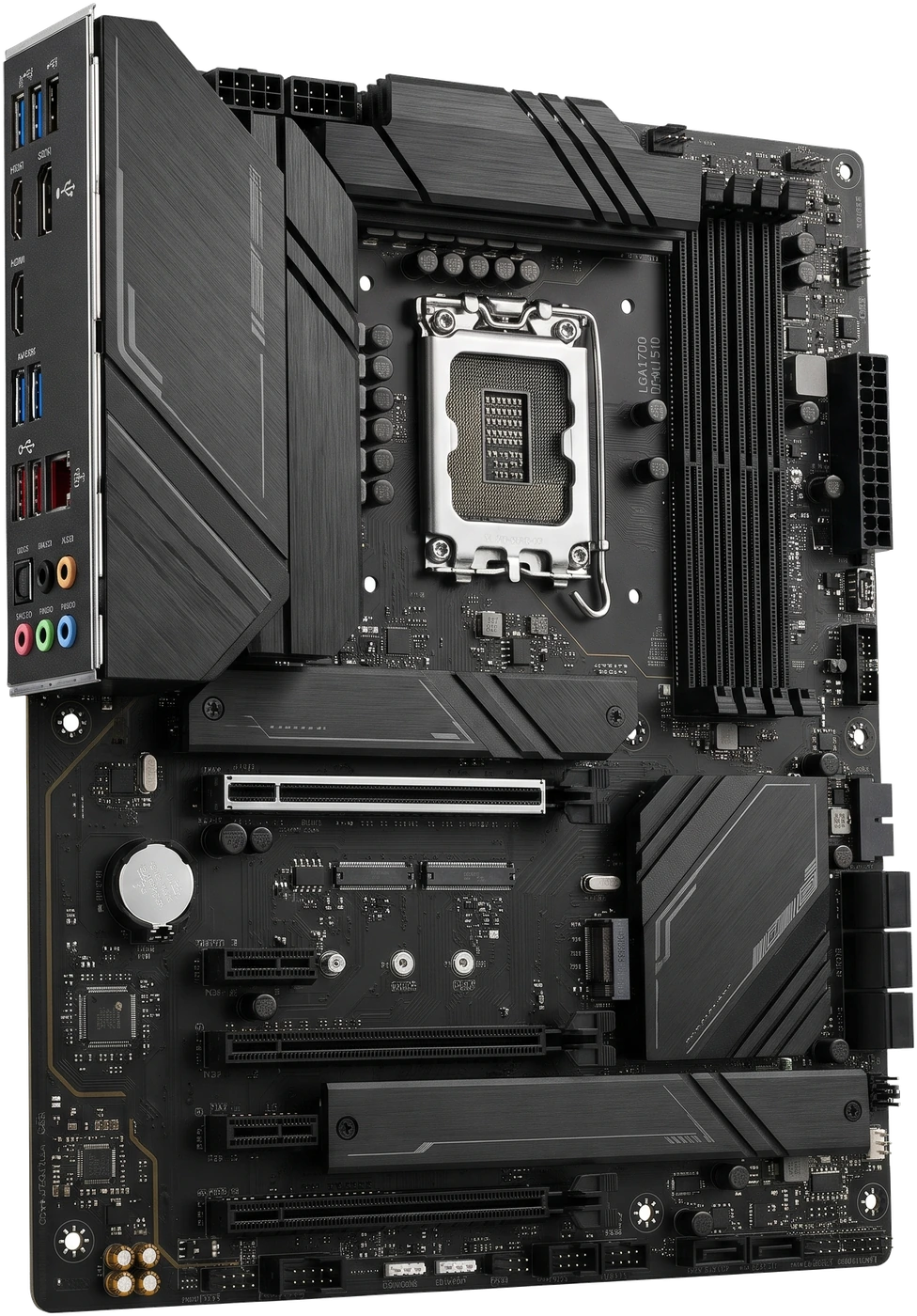
The standard full-size board (305 x 244 millimetres (mm)). Usually gives you four RAM slots, multiple M.2 storage slots, plenty of USB ports and generous spacing between parts so building is comfortable. Needs a standard ATX case (Mid Tower or Full Tower).
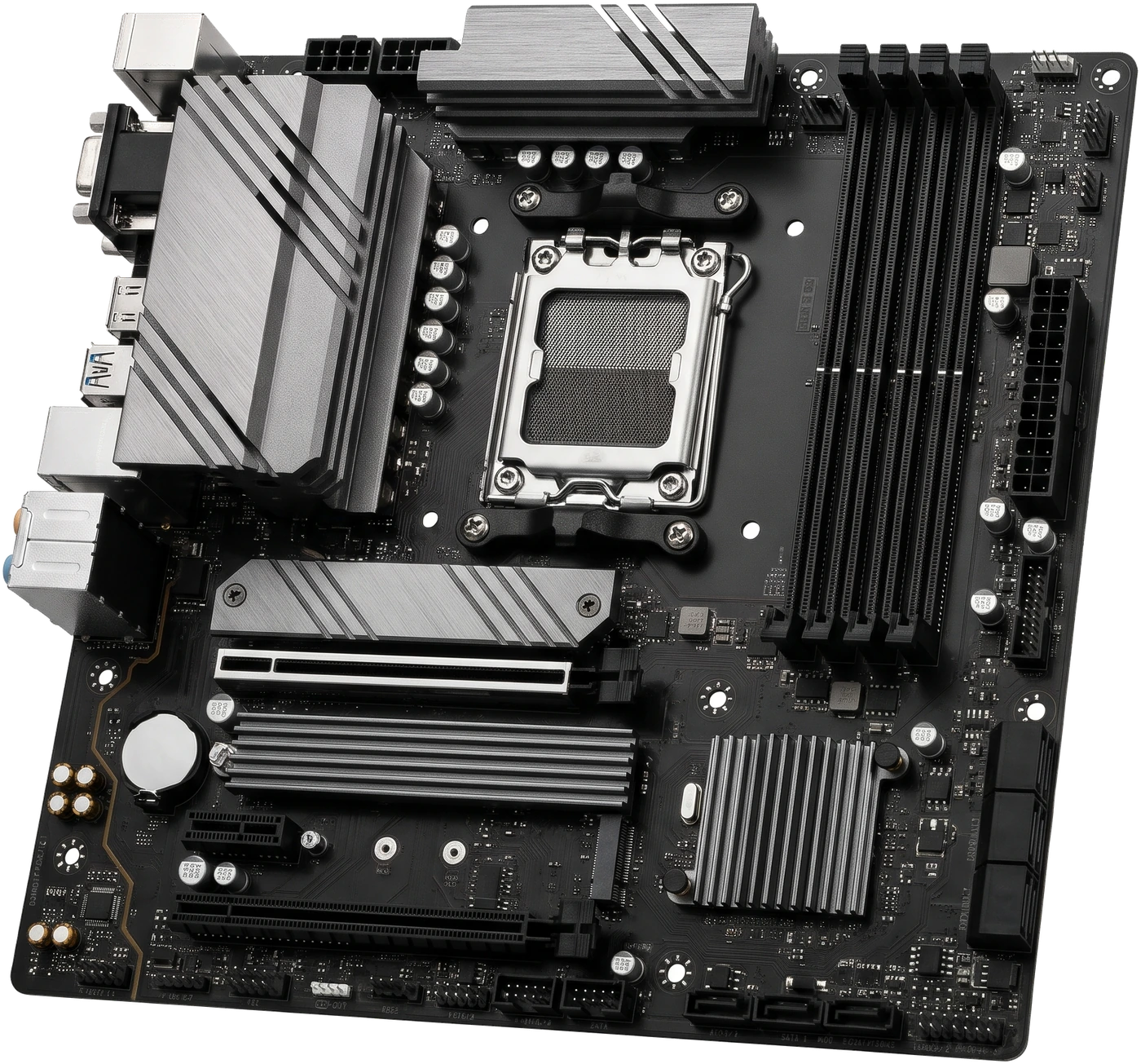
A shorter square-ish board (up to 244 x 244 mm). Keeps almost all everyday features of full ATX, often including four RAM slots and two M.2 slots, while trimming lower expansion slots. Fits both standard ATX cases and smaller Mini Towers, usually offering the best value for money.
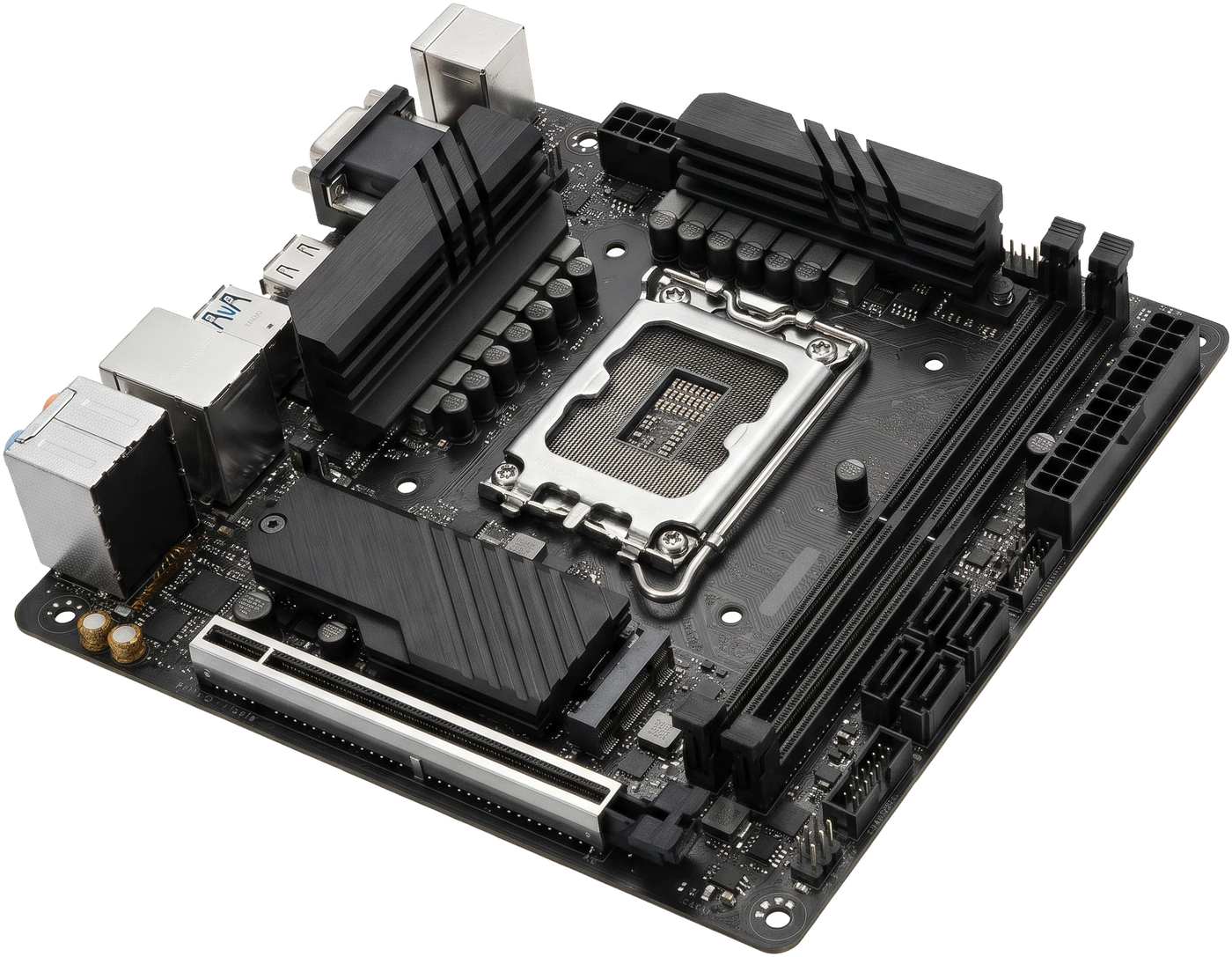
A tiny 170 x 170 mm square board made for very compact computers. Usually offers only two RAM slots and one graphics card slot, leaves tighter room for large coolers, and often costs more than larger boards for fewer ports. (Note: the older example pictured includes a blue Video Graphics Array (VGA) port; modern boards use High-Definition Multimedia Interface (HDMI) and DisplayPort instead.)
Aside from physical size, every motherboard contains a control chip called the chipset that determines extra ports and tuning options.
A higher chipset tier adds extra USB/M.2 ports and optional overclocking, not automatic extra speed on a normal processor.
A few specialist boards sit outside the three standard sizes.
Smaller boards usually fit into larger cases, while larger boards will not fit smaller cases.
| Size Name | Dimensions | Typical Slots | Best Suited For |
|---|---|---|---|
| ATX | 305 x 244 mm | 4 RAM slots; 2 to 4 M.2 slots; multiple expansion slots | Mid Tower or Full Tower PCs wanting maximum ports and easy spacing |
| Micro-ATX (mATX) | Up to 244 x 244 mm | 2 or 4 RAM slots; 1 to 3 M.2 slots; 1 graphics slot + 1 to 2 small slots | Best value for most home, office and single-graphics-card gaming PCs |
| Mini-ITX | 170 x 170 mm | 2 RAM slots; 1 to 2 M.2 slots; 1 graphics slot only | Ultra-compact Small Form Factor PCs where desk space is very tight |
Spending twice as much on a motherboard does not make your CPU or graphics card faster. Pay only for the connections, reliability and size your build actually needs.
Matches your processor physically and electronically. Why it matters: a board with the wrong socket cannot accept your CPU at all. Look for matching socket plus a rear BIOS update button ("BIOS Flashback") if pairing an older board with a newer CPU; avoid assuming every board supports every chip out of the box.
Boards accept either DDR4 or DDR5, never both. Why it matters: buying the wrong generation or filling only two slots leaves no easy expansion room later. Look for four memory slots if you plan to add more RAM in the future.
ATX, Micro-ATX or Mini-ITX. Why it matters: the board must physically screw into your case. Micro-ATX or standard ATX gives much better value and easier assembly than Mini-ITX unless you specifically want a tiny PC.
Number of M.2 slots and SATA ports. Why it matters: installing drives in some M.2 slots can turn off two SATA ports because they share internal pathways. Look for at least two M.2 slots; check the manual table before buying lots of drives.
Back USB ports, headphone jacks, wired network socket and optional built-in Wi-Fi / Bluetooth. Why it matters: buying Wi-Fi built into the motherboard is tidier and often cheaper than adding an adapter later. If your case has a front USB-C port, make sure the board lists a matching internal front USB-C header.
Metal heatsinks beside the CPU socket keep processor power steady under heavy load. Look for decent heatsinks on mid-range boards if using a demanding processor; avoid paying more for the motherboard than for the CPU itself unless you genuinely need workstation ports.
A reliable mid-range B-series Micro-ATX or ATX board already handles modern SSDs, dual-channel RAM, graphics cards and everyday USB devices cleanly. Save the extra budget for a faster Graphics Processing Unit (GPU), CPU or larger Solid-State Drive (SSD).
Because almost every part plugs into the motherboard, check every match below before buying.
Exact socket match AND processor model listed on the motherboard maker's CPU Support List (with BIOS version).
Same generation (DDR4 or DDR5), full desktop Dual In-line Memory Module (DIMM) size, and within the board's maximum capacity.
Case lists support for ATX, Micro-ATX or Mini-ITX, and board includes internal headers for the case's front buttons and USB-C port.
Enough M.2/SATA ports (watch shared-lane notes) and a full-length PCIe x16 slot for a dedicated graphics card.
A motherboard has no moving parts, yet because everything attaches to it, problems often point back to loose plugs, a flat coin battery or outdated startup firmware.
An extra brass mounting post left under the board where there is no screw hole can press into bare solder points and short-circuit the motherboard the moment you turn on the power.
Components physically cannot seat or refuse to power on.
A full ATX board physically hangs off the edge of a Micro-ATX Mini Tower tray.
The front USB-C socket on top of your case stays completely dead.
The computer performs no faster while costing significantly more.