01Inside the 3.5-inch drive on the right above
Spinning Disks and Moving Arm (HDD)
Rigid magnetic platters spinning at 5,400 or 7,200 revolutions per minute (RPM) while tiny arms move back and forth to read data. Delicate if bumped while running.
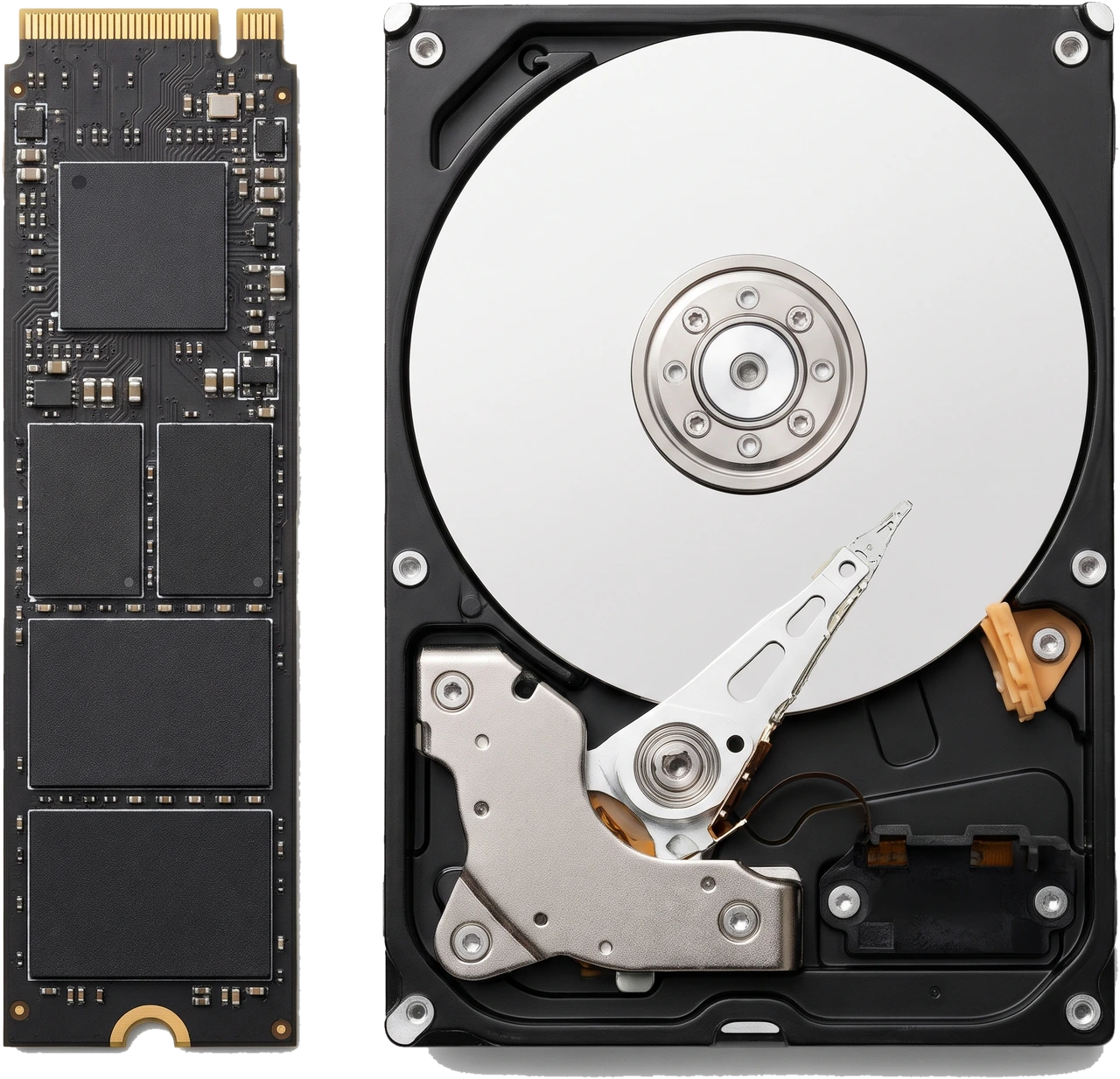
Storage drives keep your Operating System (OS), programs, games, photos, videos and documents saved permanently, even when the computer is switched off.
When you open an application or load a game, the Central Processing Unit (CPU) relies on the motherboard to copy the needed data from permanent storage into fast Random Access Memory (RAM) while you work on it. Switching a computer from an older mechanical hard drive to a modern SSD is one of the biggest speed improvements you can make: Windows or Linux starts in seconds instead of a minute.
People often confuse memory and storage because phones advertise gigabytes (GB) or terabytes (TB) of "memory". On a desktop computer, memory always means temporary RAM, whereas storage means your permanent HDDs and SSDs.
Drive makers count 1 TB in round thousands (one trillion bytes), while Windows counts space in groups of 1,024 using the same GB and TB letters. Seeing around 931 GB on a new 1 TB drive is completely normal and not missing space.
Desktop storage comes in three distinct shapes across the photos on this page: boxed 3.5-inch hard drives, flat 2.5-inch boxes, and slim gum-stick M.2 cards.
Rigid magnetic platters spinning at 5,400 or 7,200 revolutions per minute (RPM) while tiny arms move back and forth to read data. Delicate if bumped while running.
Solid silicon chips managed by a small controller chip with zero moving parts, making SSDs silent, shock-resistant and many times faster than mechanical drives.
Two L-shaped sockets: a wide plug from the Power Supply Unit (PSU) and a thin SATA data cable running to the motherboard.
Slides straight into a matching M.2 slot on the motherboard and stays flat with one screw or clip, needing zero separate cables.
There are three main storage options in everyday desktop builds. Notice that "M.2" describes only the small stick shape, NOT how fast the drive is inside.
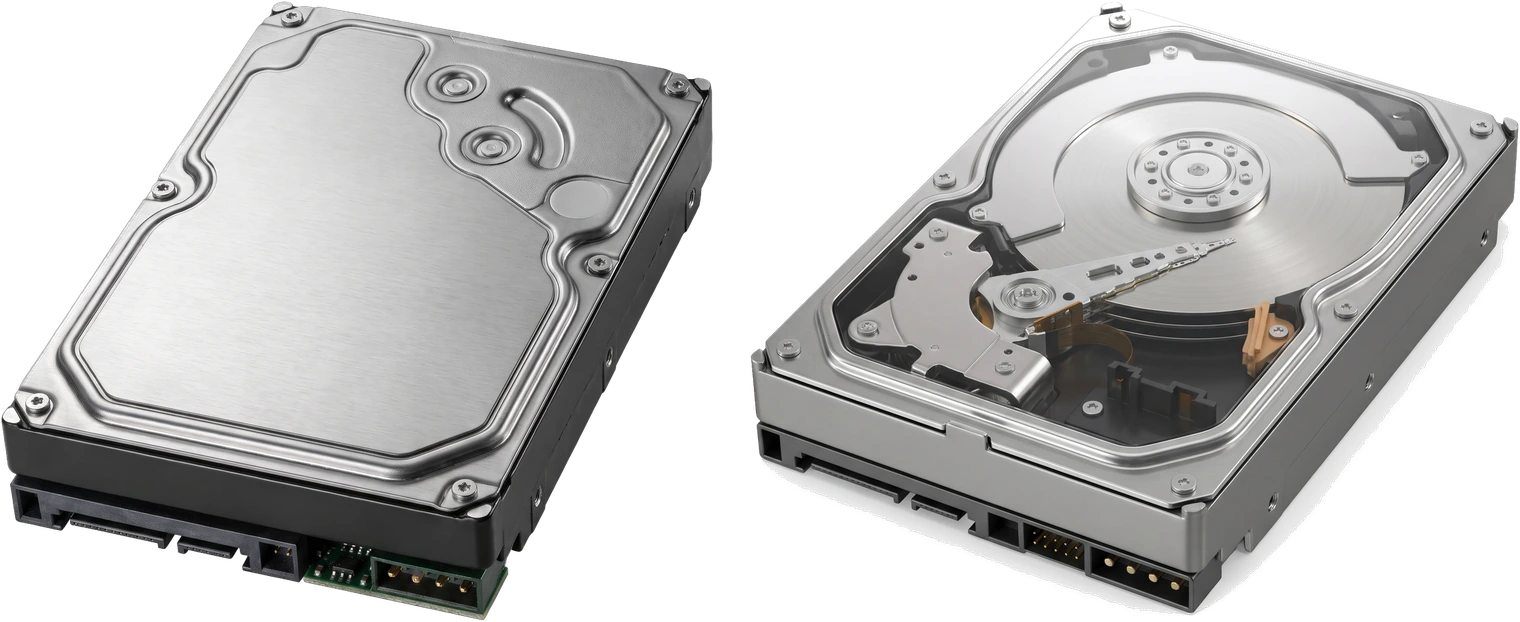
Older mechanical drive using spinning magnetic disks inside a 3.5-inch metal box. Much slower than SSDs (often 100 to 250 megabytes per second (MB/s)) and makes light humming or clicking sounds while busy, yet offers huge multi-terabyte space at the lowest cost. Best kept for storing big photo/video archives or backups rather than running Windows.
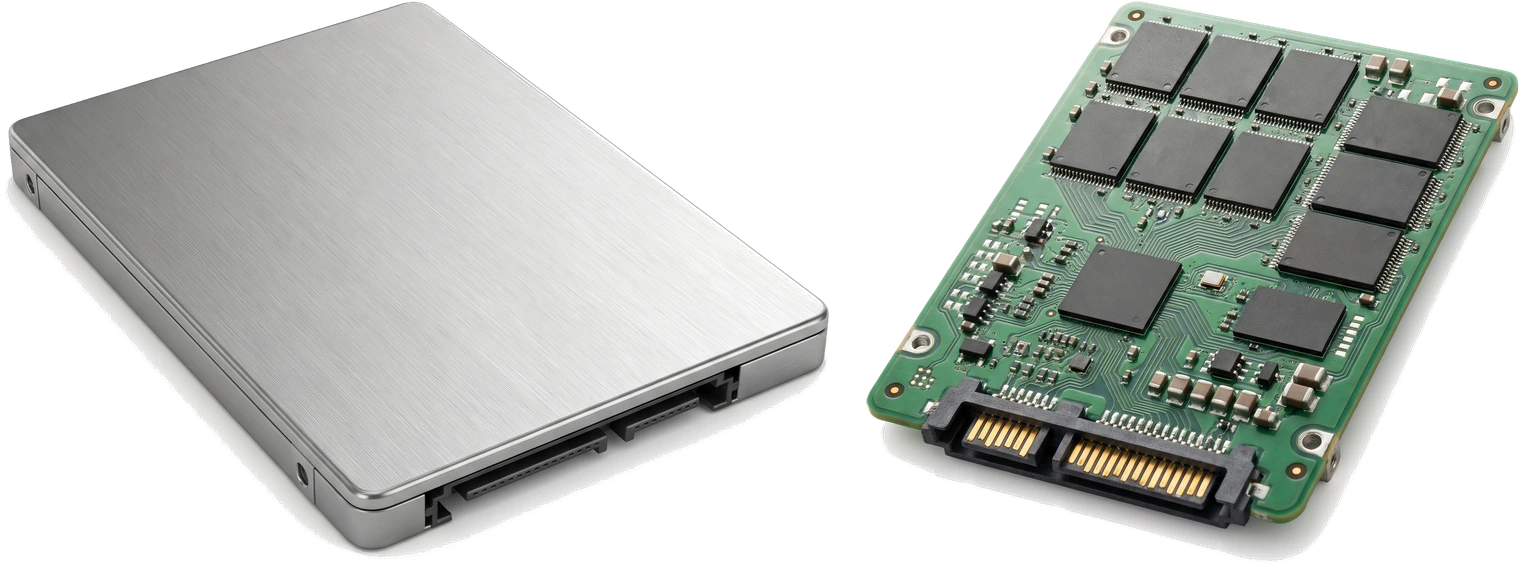
Compact 2.5-inch box packed with flash memory chips instead of moving disks. Silent, rugged and dramatically faster than any HDD for starting up and opening apps, though limited to roughly 550 MB/s by the SATA cable connection. Great for upgrading older computers or adding extra fast space.
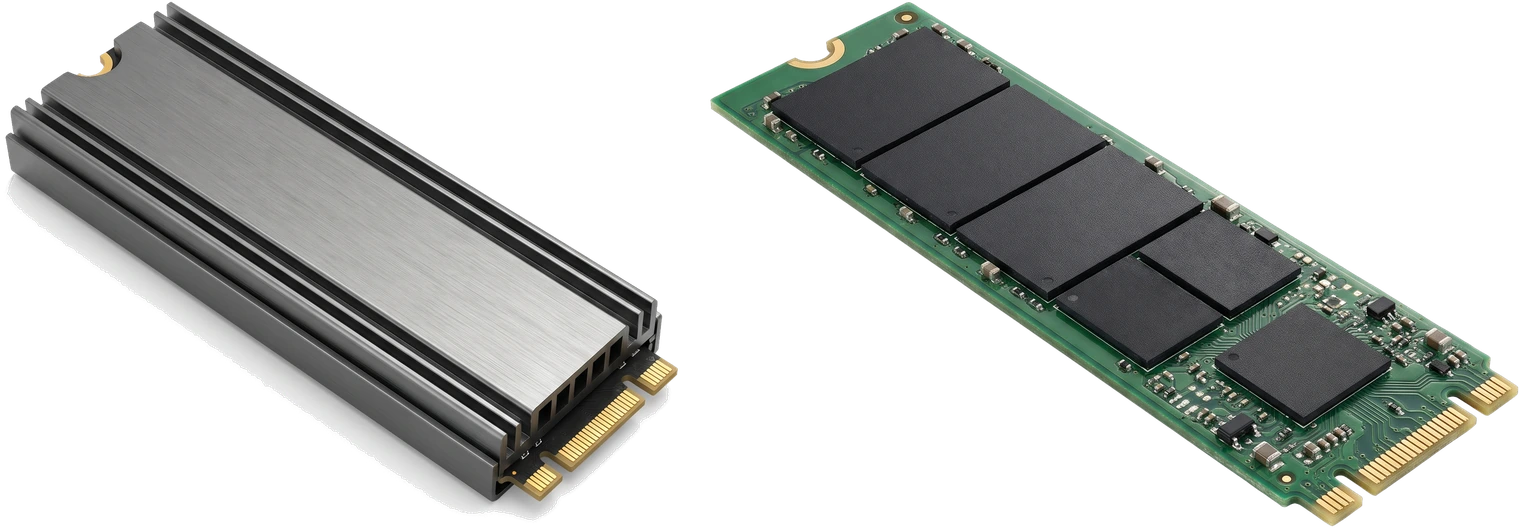
Today's main speed standard, using the compact M.2 stick shape (2280 size: 22 millimetres (mm) wide by 80 mm long) plugged straight into high-speed motherboard Peripheral Component Interconnect Express (PCIe) lanes. Delivers roughly 3,500 to 7,000+ MB/s depending on generation. Always confirm the word "NVMe" or "PCIe" on the label: M.2 SATA drives look very similar (often with two connector notches instead of one) but run at slower SATA speeds and may not work in NVMe-only slots.
Everyday boot and program launch times feel massively faster on any SSD than on an HDD; differences between fast NVMe generations are much smaller in normal daily use.
| Feature | Hard Disk Drive (HDD) | SATA SSD | NVMe SSD (M.2) |
|---|---|---|---|
| How it stores data | Spinning magnetic disks | Solid flash chips | Solid flash chips |
| Moving parts | Yes (audible, bump sensitive) | None (silent) | None (silent) |
| Cables needed | SATA data + PSU power cables | SATA data + PSU power cables | None (plugs straight onto motherboard) |
| Typical top speed | 100 to 250 MB/s | About 550 MB/s | 3,500 MB/s to 7,000+ MB/s |
| Cost per TB | Lowest (cheapest for huge archives) | Moderate | Often similar to SATA SSD for great value |
| Best suited for | Large photo/media archives & backups | Budget upgrades & extra secondary storage | Main Windows/Linux drive, apps & modern games |
Focus on capacity, reliable flash technology, slot match and a solid warranty rather than chasing extreme speed numbers.
Determines how many programs, games and personal files fit comfortably. Why it matters: filling an SSD completely slows it down. Look for 500 GB minimum for a basic OS drive, 1 TB as the everyday sweet spot, or 2 TB+ for large modern game libraries; avoid 120/250 GB budget drives on a new Personal Computer (PC).
Choose an M.2 NVMe SSD for your main OS and apps if your motherboard has an M.2 NVMe slot. Why it matters: a PC running Windows from an HDD feels sluggish regardless of CPU speed. Avoid buying an M.2 SATA drive for an NVMe-only motherboard slot.
Standard desktop sticks are size 2280 (80 mm long). Modern PCIe 4.0 drives (around 5,000 to 7,000 MB/s) offer the best blend of price, speed and cool running; avoid overpaying for very hot PCIe 5.0 drives unless you regularly move huge raw video files and have a motherboard heatsink ready.
Pick trusted brands (such as Samsung, Crucial, Western Digital or Seagate) with a 3-to-5-year SSD warranty. If buying a large 3.5-inch HDD for active file writing, prefer Conventional Magnetic Recording (CMR) over Shingled Magnetic Recording (SMR), as SMR hard drives slow down sharply during big transfers.
2.5-inch and 3.5-inch SATA drives almost never ship with cables in the box; check that two SATA data cables came with your motherboard and spare SATA power plugs remain on your PSU. M.2 drives use screws/clips supplied with the motherboard.
| Capacity | Good Choice For | Practical Advice |
|---|---|---|
| 500 GB SSD | Office, study, web browsing | Fits Windows and everyday apps cleanly, though large games fill it quickly. |
| 1 TB SSD | Most home users & gamers | Best everyday value; holds the OS, programs and several large modern games with breathing room. |
| 2 TB+ SSD | Heavy gaming, video editing, photo libraries | Great if keeping big projects and many modern 100 GB+ games installed together. |
| 2 TB to 8 TB+ HDD | Large archives, backups, cold storage | Combine alongside your main SSD when storing huge collections cheaply. |
Every storage drive can fail suddenly without warning, or lose files to accidental deletion or ransomware. Keep separate backup copies of important documents, photos and projects on an unplugged external drive or online cloud storage.
M.2 support varies from slot to slot even on the same motherboard, so always check the manual diagram.
Verify each M.2 slot supports NVMe (PCIe) or M.2 SATA, check supported length (2280 standard), and read manual footnotes on whether using an M.2 slot disables certain SATA ports.
2.5-inch SSDs and 3.5-inch HDDs need matching drive trays in your case, a SATA data cable to the motherboard and a spare SATA power plug from the PSU.
Check whether a tall pre-installed M.2 SSD heatsink fits beneath your motherboard cover or dedicated Graphics Processing Unit (GPU) backplate.
Solid-state drives need almost no hands-on upkeep besides keeping some free space and keeping regular backups.
Wrong drive protocol is capped at SATA speed or simply not detected in Basic Input/Output System (BIOS).
Computer feels sluggish even when paired with an expensive processor and graphics card.
Most bare drives ship without cables in the box.
A sudden drive failure, theft or accidental wipe destroys everything permanently.