01Beneath the central metal heatsink
Graphics Chip (Hidden Inside)
The main graphics processor doing the visual work, covered tightly by cooling metal so you cannot see it without disassembly.
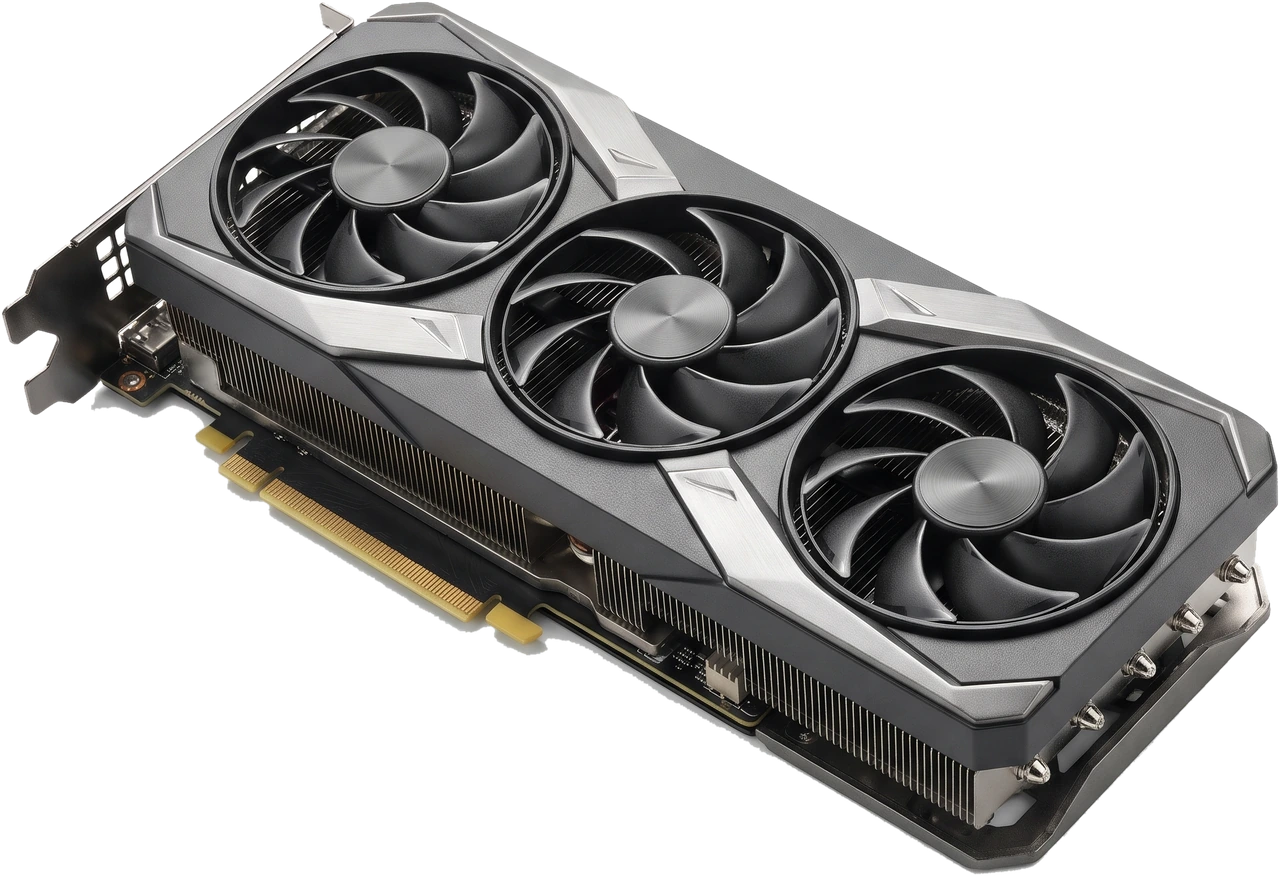
The Graphics Processing Unit (GPU) turns data from your software into the pictures, video and three-dimensional (3D) worlds shown on your monitor.
While the Central Processing Unit (CPU) handles general logic and decisions, the GPU is built to run thousands of simple visual calculations at the same time. That makes it essential for smooth 3D games, video editing, 3D design and animation.
Not every Personal Computer (PC) needs an expensive add-in graphics card. Everyday web browsing, documents, video streaming and study run comfortably on built-in graphics inside compatible CPUs, leaving your budget, case space and Power Supply Unit (PSU) capacity free.
NVIDIA (GeForce), Advanced Micro Devices (AMD) (Radeon) and Intel (Arc) design the main graphics processor chip. Partner companies (such as ASUS, Micro-Star International (MSI) and Gigabyte) then build that chip onto a full graphics card with fans, video memory and monitor sockets. Two cards using the same chip can vary quite a bit in length, noise and cooling.
Look at the dedicated card in the hero photo above and image B below to recognise the parts that matter when buying, fitting and maintaining a graphics card:
The main graphics processor doing the visual work, covered tightly by cooling metal so you cannot see it without disassembly.
Dedicated high-speed memory mounted right on the card (commonly 8 gigabytes (GB) to 16 GB+) to store textures and display frames separately from system Random Access Memory (RAM).
Metal fins and spinning fans draw heat away from the chip. Many modern cards are thick enough to cover 2 to 3.5 rear case slots.
The motherboard slot gives only modest power (up to 75 watts (W)), so stronger cards need extra 6+2-pin (8-pin) or 16-pin 12-Volt 2x6-pin (12V-2x6) plugs straight from the PSU.
Holds DisplayPort (DP) and High-Definition Multimedia Interface (HDMI) sockets for your monitors and screws firmly to the back of the computer case.
Plugs into the long primary PCIe x16 slot on your motherboard. Newer and older PCIe versions still fit and work together.
Graphics hardware comes in two clear options: integrated graphics built inside your CPU, or a dedicated graphics card that plugs separately into the motherboard.
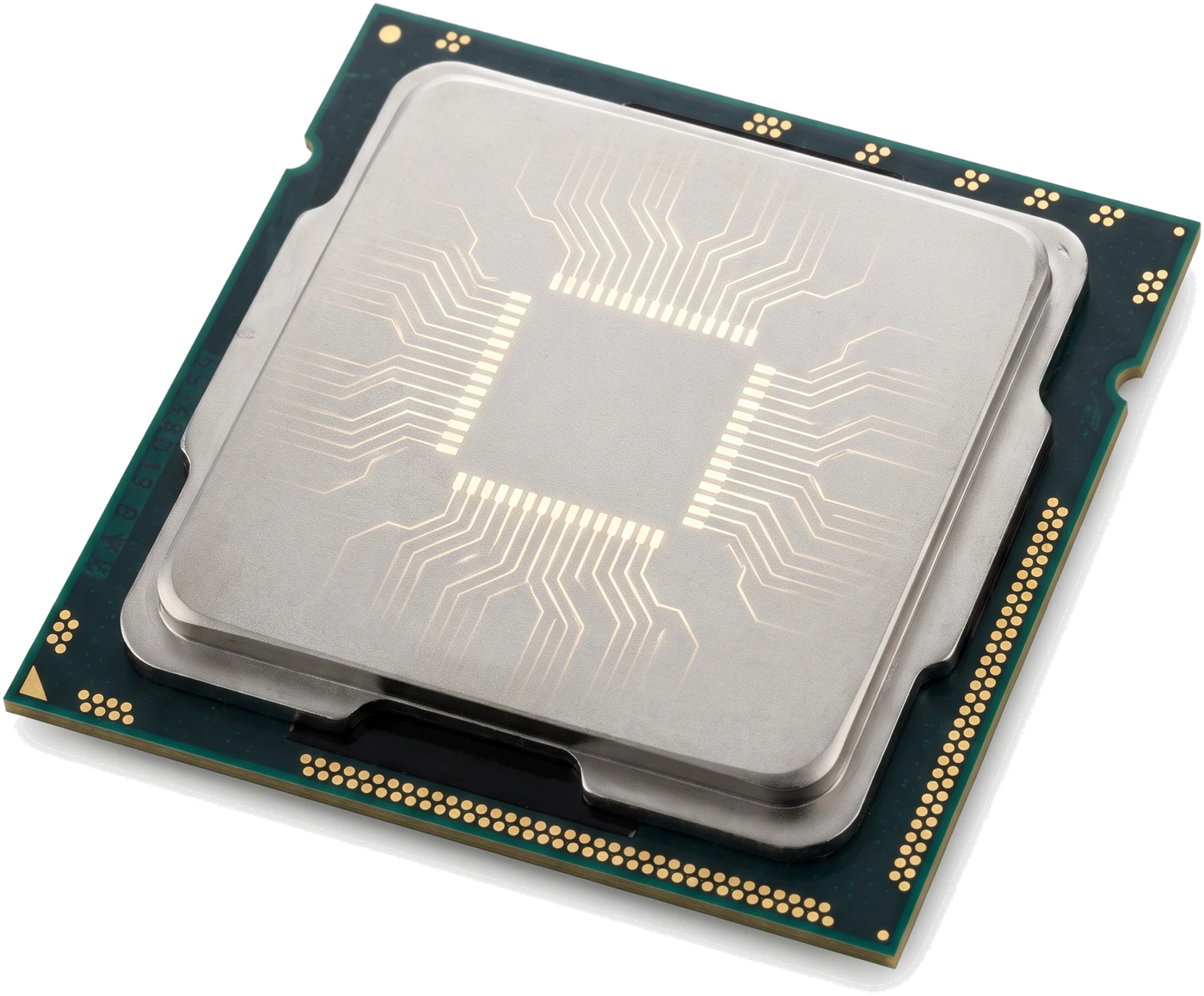
Built right into compatible processors and sharing your computer's main system RAM. Costs nothing extra, uses very little electricity and runs silently, making it ideal for office work, browsing, films and light older games. Plug your monitor cable into the rear ports on the motherboard. (Note: the image above illustrates graphics circuits inside a processor conceptually.)
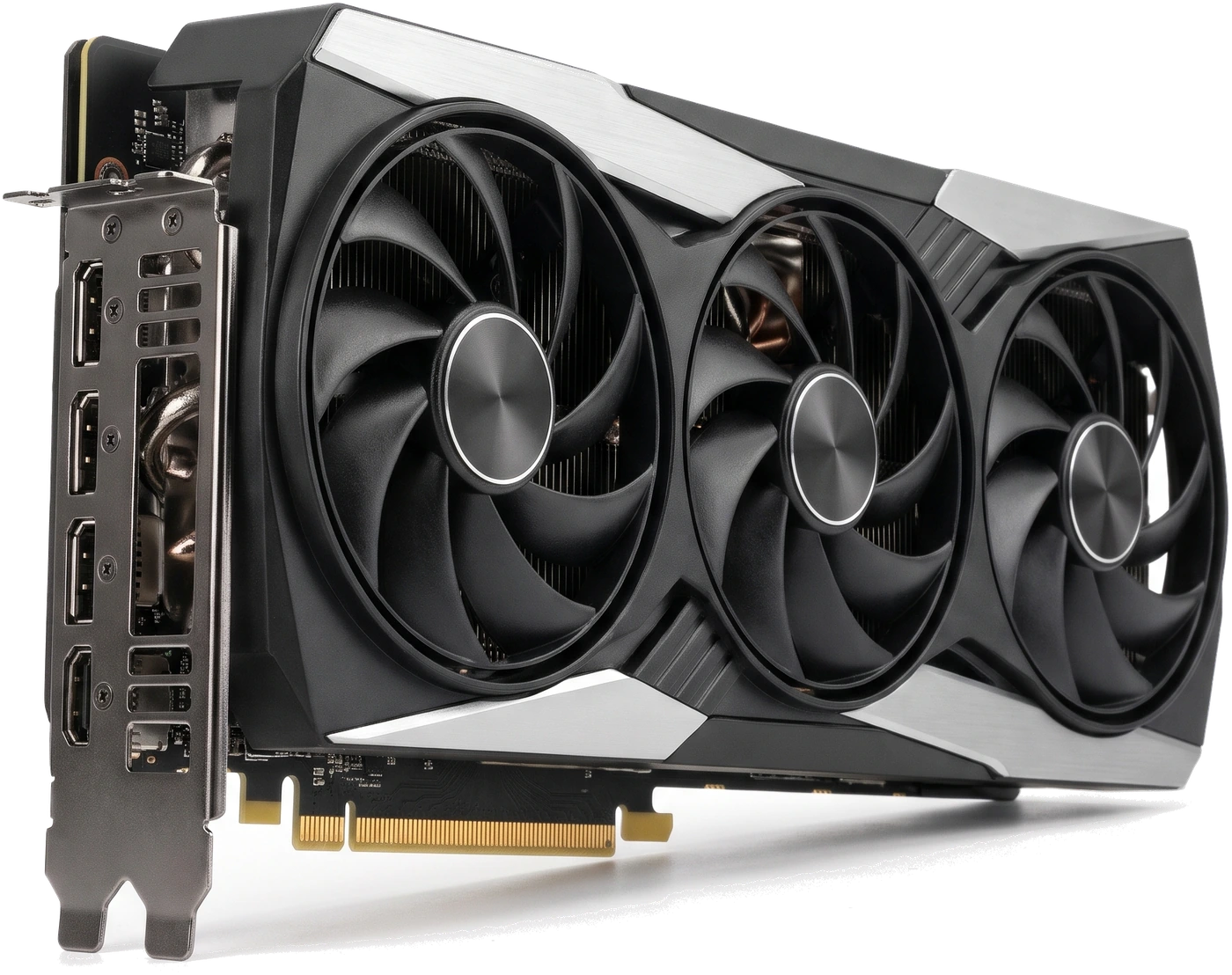
A separate PCIe expansion card carrying its own graphics processor, dedicated VRAM and heavy multi-fan cooler (note the DisplayPort and HDMI ports along the left mounting plate). Essential for modern 3D gaming, high-refresh monitors, video production and 3D work, at the cost of higher price, extra power needs and larger case space. Always plug your monitor into the card ports, not the motherboard!
Buy a dedicated card only when your games, monitor or creative software truly exceed built-in CPU graphics.
| Feature | Integrated Graphics (iGPU) | Dedicated Graphics Card |
|---|---|---|
| Where it lives | Built inside compatible CPU | Separate large card plugged into motherboard |
| Video memory (VRAM) | Shares main system RAM | Own dedicated high-speed VRAM on the card |
| Extra power & space | None (uses main CPU power) | Needs PSU wattage, power plugs and wide case room |
| Where monitor plugs in | Motherboard rear HDMI / DisplayPort | Graphics card rear metal bracket ports only |
| Best suited for | Office, study, web, 4K video streaming, light games | Modern 3D gaming, video editing, 3D modelling, high-refresh screens |
Compare real-world test results for your actual screen and games instead of falling for flashy box numbers.
Pushing a 1440p or 4K screen needs far more graphics muscle than a standard 1080p screen. Always check independent reviews showing real frame rates in the games or programs you use at your monitor's exact resolution.
VRAM stores textures and screen images. Why it matters: too little VRAM causes severe stuttering in modern games. Look for 8 GB for budget 1080p play and 12 GB to 16 GB+ for smooth 1440p/4K or creative work. Avoid judging a card by VRAM alone: a slow chip with 16 GB cannot beat a much faster chip with 12 GB.
Modern triple-fan cards are long (often 300 millimetres (mm) or more) and thick (spanning 2 to 3.5 rear case slots), leaving tight space toward front fans and the side glass panel. Check every millimetre against your case specification before buying!
Every dedicated card maker publishes a minimum recommended PSU wattage plus required plugs (for example one or two 8-pin PCIe plugs, or one 16-pin 12V-2x6 plug). Avoid flimsy power adapters if your PSU lacks the proper plugs.
Check how many HDMI or DisplayPort sockets sit on the back of the card and ensure your monitor and cable match (DisplayPort is usually preferred for high-refresh PC monitors).
Cards with larger heatsinks and two or three fans generally run cooler and quieter than tiny single-fan models. Check independent noise/temperature tests and local warranty support rather than paying huge premiums for tiny factory speed boosts.
| Port Type | Common Use | Practical Buyer Check |
|---|---|---|
| DisplayPort (DP) | Main choice for desktop PC monitors | Best support for high refresh rates and adaptive sync features using a certified DP cable. |
| HDMI | Televisions (TVs), projectors and office/gaming screens | Carries both audio and video; ensure a modern HDMI 2.1 cable when targeting 4K at high refresh rates. |
| USB Type-C (USB-C) | Found only on select specialised/workstation cards | Do not assume any USB-C port outputs video unless the card specification states video output. |
Putting an ultra-expensive flagship graphics card into a PC connected to a basic office monitor or paired with a very old budget processor wastes money on speed you will never see.
Graphics cards impose tight space limits inside the case and real electrical demands on the power supply.
Compare exact card length (remember front fans or radiators shrink case room!), slot thickness, and side glass clearance for the power plug.
Verify continuous PSU wattage meets card recommendation and provides the exact 8-pin PCIe or 12V-2x6 cables needed (use separate cables per socket on high-draw cards).
Needs one free full-length PCIe x16 slot. Heavy cards also benefit from an anti-sag support pillar.
Pair performance sensibly and verify matching HDMI/DisplayPort ports for your monitor resolution and refresh rate.
Dedicated graphics cards work hard and rely on clean fans and solid power plugs to stay cool and trouble-free.
High-power 12V-2x6 or 12-Volt High Power (12VHPWR) plugs must click straight in with zero gap and at least 30 to 35 mm of straight cable before bending. A loose or sharply bent plug can overheat and melt.
Always press down the plastic locking tab at the right end of the motherboard PCIe slot before lifting a graphics card out, or you can rip the slot off the motherboard.
Produces no display on non-integrated CPUs or completely bypasses your expensive graphics card.
Card hits front fans/radiators or prevents closing the side glass panel.
Computer refuses to boot or shuts down immediately when launching a game.
Paying extra for slow entry-level cards marketed with big memory numbers.