Step 15: Install Drivers and Updates
Download and install official motherboard chipset, Ethernet, wireless networking (Wi-Fi), audio and NVIDIA, Advanced Micro Devices (AMD) or Intel graphics drivers, run operating system (OS) updates, check Device Manager for unknown devices and verify all storage drives.
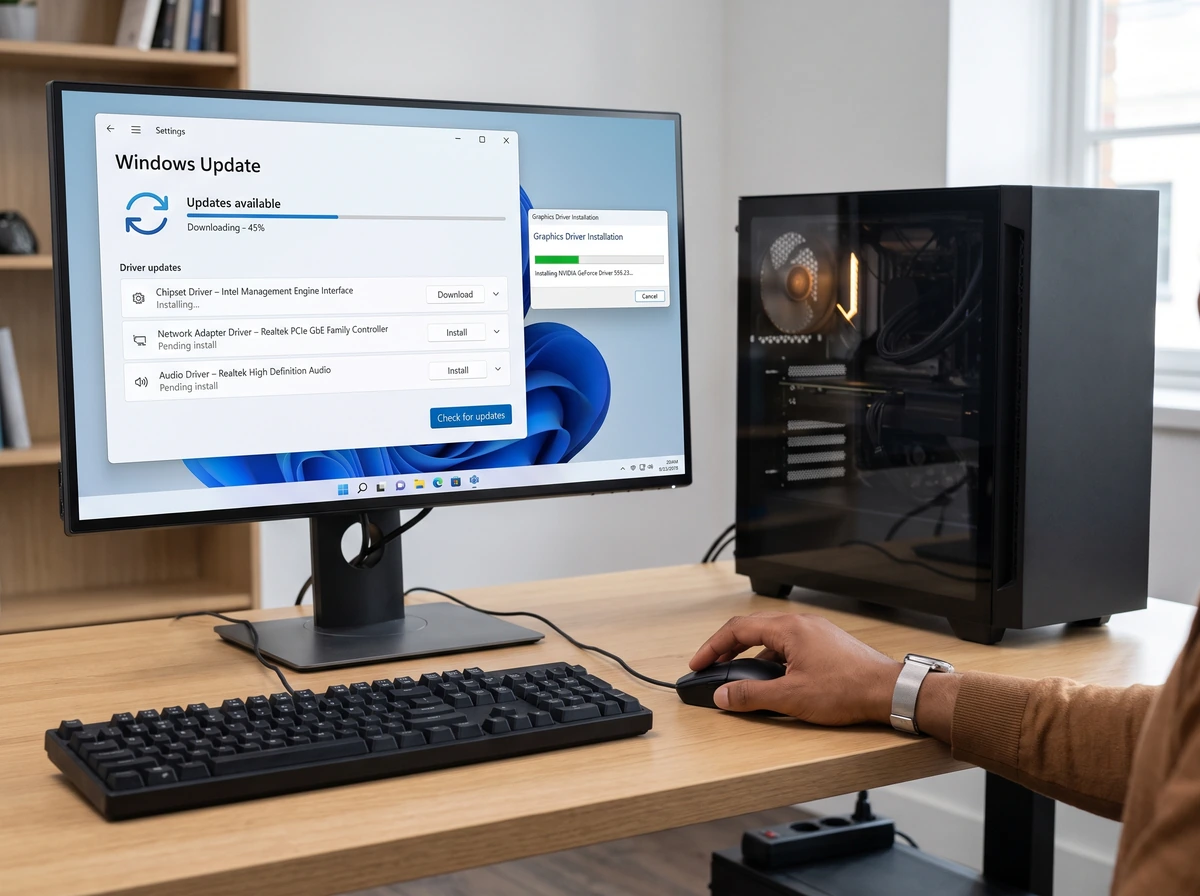
Step-by-Step Instructions
Install the latest appropriate motherboard chipset drivers
Visit your exact motherboard model's official support page (or AMD / Intel's official chipset driver page) to download and install the latest chipset driver package. Chipset drivers allow the operating system to properly manage Central Processing Unit (CPU) power states, Peripheral Component Interconnect Express (PCIe) lanes, Universal Serial Bus (USB) controllers and system sensors.
Install Ethernet or Wi-Fi drivers where required
Install the official Local Area Network (LAN) (Ethernet) and Wireless/Bluetooth drivers from your motherboard's support page. (Tip: If your fresh OS install lacks a built-in driver for a brand-new motherboard's Ethernet/Wi-Fi chip, copy the LAN/Wi-Fi driver installer onto your USB flash drive from another device and install it first.)
Install audio drivers where required
Download and install the official onboard audio driver package from your motherboard's support page so rear and front-panel audio jacks operate properly.
Install the correct GPU driver directly from NVIDIA, AMD or Intel
Download the latest stable graphics driver directly from the GPU silicon manufacturer's official website (nvidia.com for GeForce graphics cards, amd.com for Radeon GPUs, or intel.com for Arc/integrated GPUs). Restart the personal computer (PC) when installation completes and verify that your monitor is running at its native resolution and full refresh rate in Display Settings.
Run operating-system updates
Open Windows Update (or run your Linux package manager update) and install all pending cumulative security, kernel and platform updates, restarting as required.
Check Device Manager or system hardware information for missing or malfunctioning devices
In Windows, right-click the Start button and open 'Device Manager' (or run lspci / check Settings > About on Linux). Confirm there are no 'Other devices / Unknown device' entries or yellow exclamation triangles indicating a missing driver.
Verify that all installed storage drives are visible
Open File Explorer (or Disks in Linux) to confirm your drives appear. If a brand-new secondary M.2 or Serial Advanced Technology Attachment (SATA) drive is detected in Basic Input/Output System (BIOS) and Device Manager but does not show a drive letter in Windows File Explorer yet, open 'Disk Management' (right-click Start → Disk Management), initialise the new disk as Globally Unique Identifier Partition Table (GPT) and create a New Simple Volume formatted as New Technology File System (NTFS).
Important Warnings & Precautions
- Always download drivers exclusively from the official motherboard and GPU manufacturer support websites (AMD, Intel, NVIDIA, ASUS, Micro-Star International (MSI), Gigabyte, ASRock, etc.).
- Never use questionable third-party 'driver-updater' utilities or random driver-download websites, which frequently bundle adware or install mismatched drivers.
Step 15 Completion Checklist
Confirm every item below before moving to the next step:
- Official motherboard chipset, LAN/Wi-Fi and audio drivers installed.
- Official GPU driver installed directly from NVIDIA, AMD or Intel; display resolution and refresh rate verified.
- Operating-system updates completed and system restarted.
- Device Manager (or Linux hardware check) verified clean with zero missing or errored devices.
- All primary and secondary storage drives visible and initialised.
Relevant Components in This Step
Open any component page to review its physical parts, types and specifications: